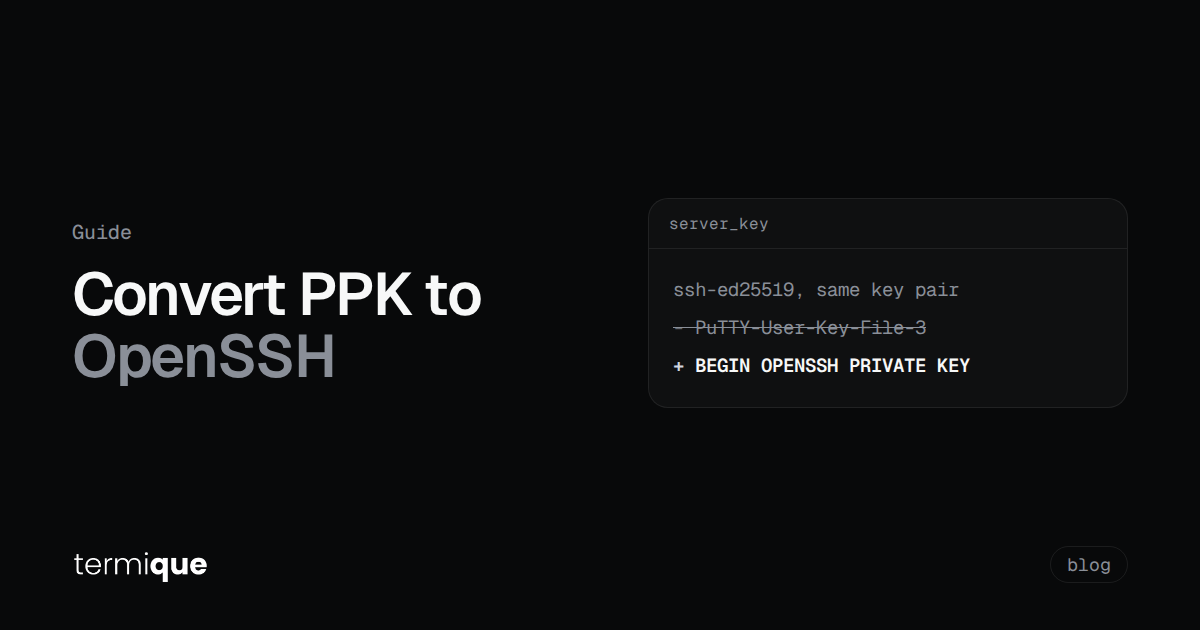
You have a private key that has worked in PuTTY for years. Then you point ssh, Git, VS Code Remote-SSH or an Ansible run at it, and you get Load key "server.ppk": invalid format. Nothing is wrong with the key. It is stored in PuTTY’s own file format, and OpenSSH does not read it.
The fix is a one-time conversion: you convert the PPK to OpenSSH format and keep using the same key pair. The server never notices, because the public key in authorized_keys stays the same. This guide covers the conversion on every desktop OS, with the GUI and the command line, plus the details that usually trip people up: PPK version 3, passphrases, file permissions and converting back.
Quick summary: what you’ll learn
- Why OpenSSH rejects
.ppkfiles and whyssh-keygencan’t fix that alone - How to convert PPK to OpenSSH with the PuTTYgen GUI on Windows
- How to convert from the command line with
puttygenon Linux and macOS - How to handle PPK v3 keys, passphrases and file permissions
- How to convert an OpenSSH key back to PPK when a tool still needs it
- How to verify the converted key is the same key before you delete anything
How do you convert a PPK file to OpenSSH?
Short answer: use PuTTYgen, the key tool that ships with PuTTY. It is the only common tool that reads the PPK format.
- Windows (GUI): open PuTTYgen, click Load, select the
.ppkfile, enter its passphrase if it has one, then choose Conversions > Export OpenSSH key and save the file. - Linux or macOS (CLI): install the PuTTY tools, then run:
puttygen server.ppk -O private-openssh -o ~/.ssh/server_key
puttygen server.ppk -O public-openssh -o ~/.ssh/server_key.pub
chmod 600 ~/.ssh/server_key
That is the whole job for most people. The rest of this article explains each platform, the edge cases, and how to confirm you got it right.
Why can’t OpenSSH read a PPK file?
PuTTY was written for Windows long before Windows shipped an OpenSSH client, so it defined its own private key container. Open a .ppk in a text editor and the first line looks like this:
PuTTY-User-Key-File-3: ssh-ed25519
Encryption: aes256-cbc
Comment: ed25519-key-20240312
Public-Lines: 2
...
OpenSSH expects either the classic PEM format (-----BEGIN RSA PRIVATE KEY-----) or its own newer format (-----BEGIN OPENSSH PRIVATE KEY-----). The key material inside is the same math, but the container, the encryption wrapper and the key derivation are different. OpenSSH does not parse PuTTY’s container, so it fails with invalid format.
A common first attempt is ssh-keygen -i. That flag imports public keys from other formats, including the RFC 4716 format PuTTYgen uses when you click “Save public key”. It does not touch private keys, and it does not read .ppk files. So ssh-keygen can rescue a PuTTY public key file, but the private key needs PuTTYgen.
The number in the header matters too. PuTTY-User-Key-File-2 is the older format. PuTTY-User-Key-File-3 was introduced in PuTTY 0.75 and uses Argon2 for passphrase key derivation. Tools built on older PuTTY code can’t load v3 files, which is why a key that opens fine in a current PuTTY can fail in an old build of another tool.
How do you convert PPK to OpenSSH on Windows?
With the PuTTYgen GUI
- Open PuTTYgen (it is installed with PuTTY, or download
puttygen.exeon its own from the official PuTTY site). - Click Load. Change the file filter to “All Files” if your key does not end in
.ppk. - Enter the passphrase if prompted.
- Open the Conversions menu and choose Export OpenSSH key. There is also Export OpenSSH key (force new file format), which writes the
-----BEGIN OPENSSH PRIVATE KEY-----format for RSA keys too. Ed25519 keys always use the new format. - Save it as
C:\Users\<you>\.ssh\server_key, with no extension. - Copy the text in the box labelled “Public key for pasting into OpenSSH authorized_keys file” and save it as
server_key.pubnext to the private key.
If the key has no passphrase, PuTTYgen warns you before exporting it unprotected. That warning is worth taking seriously. See the passphrase section below.
Fixing permissions on Windows
The OpenSSH client that ships with Windows 10 and 11 refuses a private key that other accounts can read. If you see WARNING: UNPROTECTED PRIVATE KEY FILE!, lock the file down to your own account in PowerShell:
icacls .\server_key /inheritance:r
icacls .\server_key /grant:r "$($env:USERNAME):(R)"
Then test it:
ssh -i $env:USERPROFILE\.ssh\server_key user@hostFrom the command line on Windows
The Windows puttygen.exe is a GUI program and does not support the conversion flags the Unix build has. If you need to convert keys in a script, the easiest route is WSL: install putty-tools inside your distro and use the Linux commands below on the file through /mnt/c/....
How do you convert PPK to OpenSSH on Linux?
Install the command-line PuTTY tools. The package name depends on the distro:
# Debian, Ubuntu
sudo apt install putty-tools

# Fedora, RHEL
sudo dnf install putty

# Arch
sudo pacman -S putty
Check the version before you start, because of the PPK v3 issue above:
puttygen --versionAnything from 0.75 onward reads both PPK v2 and v3. Older distro releases may package an earlier version that only reads v2. In that case, either install a newer PuTTY or ask whoever made the key to re-export it as v2 (covered later).
Now convert. The -O flag picks the output type and -o picks the output file:
# Private key, OpenSSH format
puttygen server.ppk -O private-openssh -o ~/.ssh/server_key

# Public key, one-line OpenSSH format
puttygen server.ppk -O public-openssh -o ~/.ssh/server_key.pub

# Lock down permissions
chmod 600 ~/.ssh/server_key
chmod 644 ~/.ssh/server_key.pub
private-openssh writes the older PEM format for RSA, DSA and ECDSA keys, and the new OpenSSH format for Ed25519. If you want the new format for every key type, use -O private-openssh-new instead. Modern OpenSSH reads both.
If the .ppk is encrypted, puttygen prompts for the passphrase and the exported key stays protected by the same passphrase. Nothing is written to disk unencrypted.
How do you convert PPK to OpenSSH on macOS?
macOS ships the OpenSSH client but not PuTTY. Homebrew has the full PuTTY suite, including the puttygen command:
brew install putty
puttygen --version
The commands are identical to Linux:
puttygen server.ppk -O private-openssh -o ~/.ssh/server_key
puttygen server.ppk -O public-openssh -o ~/.ssh/server_key.pub
chmod 600 ~/.ssh/server_key
If you want to stop typing the passphrase on every connection, add the key to the macOS keychain-backed agent once:
ssh-add --apple-use-keychain ~/.ssh/server_keyThe SSH key passphrase guide covers the matching ~/.ssh/config lines and the Windows and Linux equivalents.
Can you convert PPK to OpenSSH without PuTTYgen?
Not cleanly. ssh-keygen does not read PPK private keys, and the formats aren’t simple enough to convert by hand. Every reliable conversion path uses PuTTY’s own code, either directly through puttygen or through a tool that bundles it.
What you can avoid is installing PuTTY on your main system. A throwaway container works:
docker run --rm -it -v "$PWD":/keys -w /keys debian:stable-slim \
  sh -c "apt-get update -qq && apt-get install -y -qq putty-tools && \
         puttygen server.ppk -O private-openssh -o server_key"
The -it flag keeps the passphrase prompt interactive. Delete the container’s output files from the working directory once you’ve moved them into ~/.ssh.
What about online PPK converters?
Don’t use them. A converter has to see the decrypted private key to do its job, which means you are handing a working credential for your servers to a website you can’t audit. If the key has a passphrase, you would also be typing that into the same page. The local puttygen command takes a minute to install and nothing leaves your machine.
How do you check the converted key is the same key?
Before you delete or archive the .ppk, confirm the new file is the same key pair. Compare fingerprints:
# Fingerprint of the original PPK
puttygen -l server.ppk

# Fingerprint of the converted OpenSSH key
ssh-keygen -lf ~/.ssh/server_key.pub
Both should print the same SHA256:... value. PuTTYgen 0.75 and later show SHA-256 fingerprints by default, matching ssh-keygen. On older PuTTYgen builds you may see an MD5 fingerprint instead. Use ssh-keygen -E md5 -lf to compare.
You can also confirm the private key decrypts and matches its public half:
ssh-keygen -y -f ~/.ssh/server_keyThat prints the public key derived from the private key. It should match the line in server_key.pub and the entry already in the server’s ~/.ssh/authorized_keys. Then test a real connection with verbose output:
ssh -v -i ~/.ssh/server_key user@hostLook for Server accepts key followed by Authenticated to host. Because the key pair has not changed, nothing on the server needs updating.
How do you convert an OpenSSH key back to PPK?
Sometimes you need the reverse: a tool that only takes PPK files, or a colleague who still uses PuTTY. On Linux and macOS:
puttygen ~/.ssh/server_key -O private -o server.ppkIf the receiving tool is built on an older PuTTY release that can’t read PPK v3, write a v2 file instead:
puttygen ~/.ssh/server_key -O private --ppk-param version=2 -o server.ppkOn Windows, open PuTTYgen, use Conversions > Import key to load the OpenSSH file, then click Save private key. PuTTYgen saves v3 by default. The Key > Parameters for saving key files dialog lets you pick version 2.
What should you do with passphrases during conversion?
Keep them. A conversion is a good moment to fix bad key hygiene, not to strip protection for convenience.
- The PPK had a passphrase: the exported OpenSSH key keeps it. Load it into
ssh-agentonce per session instead of removing it. - The PPK had no passphrase: add one after converting.
ssh-keygen -p -f ~/.ssh/server_keysets or changes the passphrase in place without changing the key pair. - A tool refuses passphrase-protected keys: check the tool first. A client that never prompts for the passphrase may have a bug, not a requirement. If you must strip it for a one-off, do it on a temporary copy and delete the copy right after.
If the key is old, think about whether it should be converted at all. A 1024-bit RSA key or a key that has been copied between machines for years is a candidate for replacement, not migration. Generating a fresh Ed25519 key takes one command, and the key rotation guide shows how to swap it in on servers without locking yourself out.
Where does termique fit?
termique imports private keys in PEM or OpenSSH format, so a .ppk needs the conversion above first. After that, it is a one-time step. In Settings > SSH keys, click Import key, paste or drop the converted private key, and give it a name. The private key is encrypted on your device before it’s stored, and when sync is on, the server only stores ciphertext. Passphrase-protected keys import as they are since v0.6.3, so there is no need to strip the passphrase first.
That matters if the reason you are converting is a move off PuTTY entirely. PuTTY stores saved sessions in the Windows registry and keys as loose files. termique keeps hosts, groups and keys together and syncs them to your other machines, including the iOS app, with credentials end-to-end encrypted. SSH key management is included on the free plan. If you are still comparing options, the PuTTY alternatives roundup covers twelve clients honestly, including when to keep PuTTY.
For the bigger picture on how many keys to keep, where they should live and how teams should handle them, read SSH key management for teams and managing multiple SSH keys across devices.
FAQ
Why does ssh say “invalid format” when I use a .ppk file?
OpenSSH only reads PEM and OpenSSH private key files. A .ppk file uses PuTTY’s own container, so OpenSSH can’t parse it. Convert it with PuTTYgen (Conversions > Export OpenSSH key) or puttygen key.ppk -O private-openssh -o key.
Is PPK the same as PEM?
No. Both can hold the same key, but PEM is the OpenSSL-style format OpenSSH has read for decades, while PPK is PuTTY’s format. puttygen key.ppk -O private-openssh produces a PEM file for RSA keys. For Ed25519 keys it produces the new OpenSSH format, since PEM doesn’t support Ed25519.
Does converting a PPK key change it on the server?
No. Conversion changes only the file format on your machine. The key pair and its public key stay the same, so the existing authorized_keys entry on the server keeps working.
Can ssh-keygen convert PPK to OpenSSH?
Only the public key, and only if it was saved in PuTTY’s RFC 4716 public key format: ssh-keygen -i -f key.pub. ssh-keygen cannot read .ppk private keys. Use puttygen for those.
Why won’t my PPK file open in an older tool?
It is probably a PPK version 3 file, introduced in PuTTY 0.75. Older tools only read version 2. Re-save it with puttygen key.ppk -O private --ppk-param version=2 -o key-v2.ppk, or update the tool.
Try termique free
Convert the key once, import it, and connect from macOS, Windows, Linux or iOS with the same encrypted key. Download termique.