The upload fails with a short message: Permission denied, or Couldn't get a file listing. You have a valid login, the connection works, and yet the file will not land. SFTP permission errors are almost never random. They are one of a small set of causes that look identical from the client side and are completely different from the server side.
Why SFTP says permission denied when the login works
A successful login proves the user authenticated. It says nothing about file permissions, because those are checked separately at file-open time. SSH validates your identity; the filesystem validates every operation against the user and groups you authenticated as. A login can succeed and every subsequent operation fail the moment the target path is not yours to write.
The distinction matters because it changes what you look at. A login failure points at sshd, keys, and passwords. A permission-denied failure after a successful login points at ownership, mode bits, and paths. The error string alone does not tell you which layer rejected you, but the timing does: if you got in and then got denied, you are past the SSH layer.
The three causes, in order of likelihood
- Ownership: the target directory belongs to someone else, and you are not in the group.
- Mode bits: the directory has no write permission for you, or it is read-only for the group.
- Chroot root: the account is jailed into a directory, and the jail root or its parents block the write.
Check ownership first
Most permission-denied failures are ownership mismatches. The classic setup is a web directory owned by www-data, while the SFTP user logs in as deploy. The user can read it but cannot write it, and SFTP reports that as permission denied even though the login succeeded. Check who owns the path:
ls -ld /var/www/app
# drwxr-xr-x 4 www-data www-data 4096 ...

# give the group write access and add the user to it
usermod -a -G www-data deploy
chmod 775 /var/www/app
The two commands above are the standard fix for the most common layout, but they are also an example of why you should understand the change before making it. Adding a user to www-data grants them write access to every directory that group can write, not just the one you are looking at. If that is too broad, the alternative is to set the specific directory’s group to the deploy user, or to use an ACL that grants only the needed path.
Then check mode bits on the full path
Linux checks permissions on every directory in the path, not just the final one. A missing execute bit on an intermediate directory makes the whole path unreachable, and it shows up as a listing failure rather than a write failure. Verify the whole chain:
namei -m /var/www/app     # prints the mode for every path component
namei -l /var/www/app     # same, with owner/group per component
If any component lacks the write plus execute combination the upload needs, fix that component. The execute bit matters here, since write on a directory is useless without execute to enter it.
The execute-bit detail is the one that sends people in circles. A directory with mode 644 (read-only, no execute) lists as readable, and the client happily navigates into it, but every operation that needs to traverse or create inside it fails. The fix is chmod 755 or chmod 775, and the mental model is: read to list, write to create, execute to enter. SFTP uploads need all three on the parent directories.
When chroot is in the picture
SFTP jails (ChrootDirectory) have their own rule that confuses everyone exactly once: the chroot root must be owned by root and must not be group or world writable, or sshd refuses to start the chroot at all. Then, inside the jail, the user still needs a writable subdirectory that is owned by them:
# /etc/ssh/sshd_config snippet
Subsystem sftp internal-sftp
Match User deploy
    ChrootDirectory /srv/sftp/deploy
    ForceCommand internal-sftp
# /srv/sftp/deploy owned by root:root, mode 755
# /srv/sftp/deploy/files owned by deploy:deploy, mode 755
The jail root stays root-owned and unwritable; the writable target lives one level inside. If the upload goes to the jail root itself, it fails by design. And if you set the jail root to 777 in an attempt to make uploads work, sshd will flatly refuse to start the session, because OpenSSH explicitly rejects a group- or world-writable chroot root.
How to isolate the failure fast
Sit on the server and act as the user, so the error comes from the filesystem and not the wire:
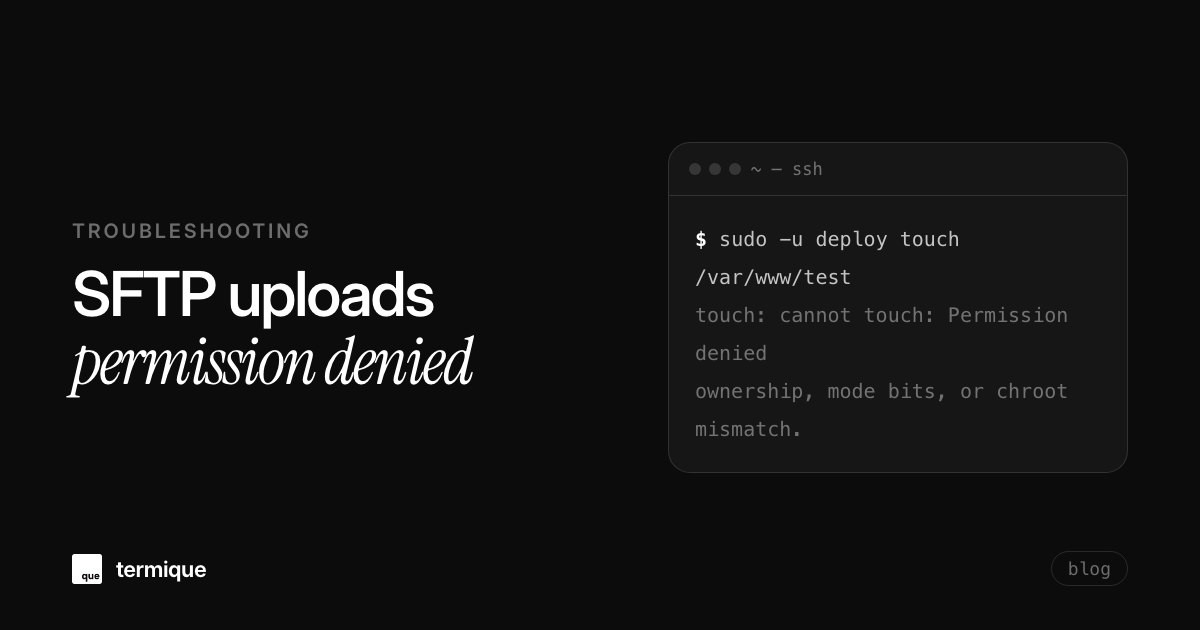
sudo -u deploy touch /var/www/app/test.txt
# Permission denied? then it is ownership or mode bits.
touch /var/www/app/test.txt && rm /var/www/app/test.txt
A local touch as that user either works or reproduces the exact error with zero SSH in the way. From there the fix is mechanical: ownership, groups, mode bits, or jail layout. The SFTP guide for developers covers the intended permission model in full if the whole setup needs a rethink.
SFTP and rsync share more than the wire
The same ownership and mode logic applies when you push files with rsync onto the same box. The difference is that rsync preserves or syncs permissions explicitly, which can both cause and cure the same errors. Comparing the two paths in SFTP vs rsync for automated backups is worth a read when the destination matters more than the tool. For scheduled jobs, automating SFTP transfers with cron safely shows where permission mistakes hide in unattended jobs.
One extra wrinkle for automated transfers: the Umask option in sshd_config controls the permissions files land with on the server, and a restrictive umask can make a successful upload unreadable by the web process. If uploads succeed but the app still cannot read them, check the umask before you start hunting other causes.
One more wrinkle: the umask
There is a variant of the permission problem that shows up only with automated uploads: the file lands, but its permissions are too tight for the web process. The Umask option in sshd_config controls what mode new files get on the server. A restrictive umask like 077 is great for privacy and terrible for a shared web directory. If uploads succeed but the web server still returns permission denied, check the umask before you start hunting for ownership problems.
Using Linux ACLs for shared multi-user SFTP directories
Standard POSIX user-group-other permissions struggle when multiple distinct users need write access to a shared web root without sharing group ownership. The modern, clean solution is Linux POSIX Access Control Lists (ACLs):
# 1. Enable ACL on directory and grant rwx to deploy user
sudo setfacl -m u:deploy:rwx /var/www/app/storage

# 2. Set default ACL so new files automatically inherit permissions
sudo setfacl -d -m u:deploy:rwx /var/www/app/storage
sudo setfacl -d -m u:www-data:rwx /var/www/app/storage

# 3. Verify effective permissions with getfacl
getfacl /var/www/app/storage
The default ACL flag (-d) guarantees that any file uploaded via SFTP by deploy will automatically grant full read and write access to the web server daemon www-data, permanently eliminating the dreaded upload permission mismatch without hacky cron scripts.
SELinux contexts and SFTP permission failures
On RHEL, Rocky Linux, AlmaLinux, and Fedora systems, an otherwise perfect set of POSIX permissions will still trigger Permission denied if the file’s SELinux security context forbids the SSH daemon from reading or writing it. This frequently happens when moving files into web roots using mv instead of cp:
# Check SELinux context on the directory:
ls -Zd /var/www/app/uploads
# unconfined_u:object_r:user_home_t:s0 (Wrong context!)

# Restore default web server context:
sudo restorecon -Rv /var/www/app/uploads

# Or explicitly set correct context for SFTP writable areas:
sudo chcon -R -t httpd_sys_rw_content_t /var/www/app/uploads
Whenever you encounter persistent permission denials on Red Hat family distributions where ls -l shows valid owner and permissions, check audit.log with ausearch -m avc -ts recent. If SELinux blocked the call, restorecon fixes it in seconds.
Debugging SFTP server-side with verbose subsystem logging
When client-side error logs provide vague Permission denied notices with no explanatory detail, configuring sshd’s SFTP subsystem to log detailed transaction operations reveals the exact syscall that failed:
# In /etc/ssh/sshd_config:
# Replace standard internal-sftp with verbose logging:
Subsystem sftp internal-sftp -l VERBOSE -f AUTHPRIV

# Or for maximum debugging detail:
Subsystem sftp internal-sftp -l DEBUG3

sudo systemctl reload sshd
sudo journalctl -u sshd -f | grep sftp
With -l VERBOSE enabled, journald streams real-time logs of every file open, read, write, and close operation, including the numerical POSIX error code (such as EACCES vs ENOENT vs EROFS for read-only mount points), instantly unmasking the root cause without trial and error.
The takeaway
- Login success does not imply write access. Permissions are checked separately, per path.
- Check ownership and group membership before touching mode bits.
- Verify the entire path with
namei, not just the final directory. - Reproduce the failure locally with a user-level
touchto rule out the network. - Remember the execute bit: read to list, write to create, execute to enter.
Permission errors are boring to debug and destructive when ignored. A few minutes of systematic checking beats an afternoon of guessing. SFTP is one of the everyday flows termique ships in the same window as your terminal sessions, with hosts and credentials managed in one place. termique.app, if you are curious.