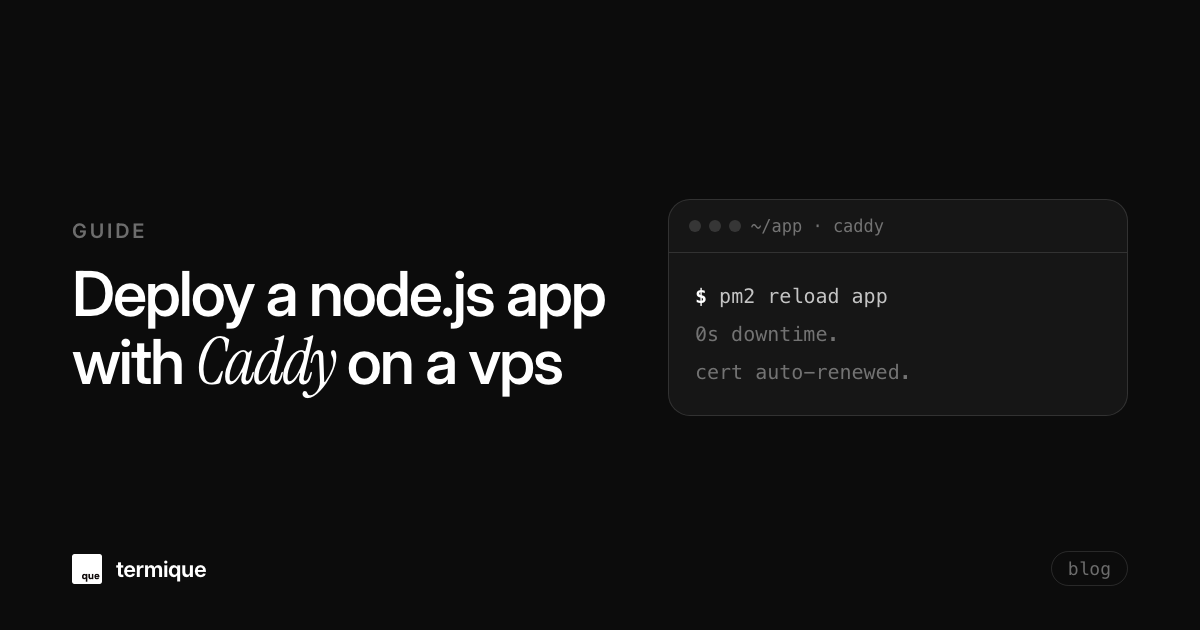
Your node.js app runs fine on your laptop, but shipping it to a public VPS means solving problems your local dev server never had: a TLS certificate that has to renew itself, a process that survives a crash at 3am, and a domain that keeps working after a reboot. In 2026, the two tools that make deploying a node.js app with Caddy on a VPS boring instead of stressful are PM2 for the process and Caddy for the reverse proxy. Getting those two working together correctly, plus a firewall that doesn’t leave the box wide open, is what this guide covers end to end.
Why deploy a node.js app with Caddy on a VPS in 2026?
Two things changed the calculus for a solo dev or small team picking a reverse proxy in 2026. First, Let’s Encrypt certificate automation stopped being optional: nobody wants to babysit a certbot cron job. Second, VPS pricing from providers like Hetzner, DigitalOcean, and Vultr made a $5-10/month box perfectly capable of running a production node.js app without needing a managed platform’s markup. Caddy solves the certificate problem by issuing and renewing TLS automatically the first time a request hits your domain: no separate ACME client, no renewal script, no expired-cert incident at 2am.
Caddy vs nginx + certbot for a solo dev’s stack
Nginx is still the more common choice in older tutorials, and it’s a fine web server, but it was never designed with automatic HTTPS in mind: you install nginx, then separately install certbot, then remember to keep the renewal timer running, then write a second config block for the redirect from port 80 to 443. Caddy folds all of that into one directive. A Caddyfile for a single node.js app is often under 10 lines, and the certificate lifecycle is not something you think about again after the first deploy. If you’re deploying a different runtime instead, for example PHP, see how to deploy Laravel with FrankenPHP on a VPS for the same reverse-proxy pattern applied to a different app server.
What you need before you deploy node.js with Caddy on a VPS
Before touching a terminal, have these ready:
- A VPS with at least 1 vCPU and 1GB RAM (2GB is more comfortable if your app does any real work), running Ubuntu 22.04 or 24.04.
- A domain name with an A record pointing at the VPS’s public IP address (and an AAAA record too, if the VPS has IPv6).
- SSH access to the VPS, ideally key-based rather than password-based from the start.
- A node.js app that reads its port from an environment variable (
process.env.PORT) instead of hardcoding it, and that doesn’t assume it owns port 80 or 443 directly.
VPS sizing, DNS records, and SSH access
DNS propagation is the step people forget to budget time for. Point the A record at your VPS’s IP as early as possible, since Caddy needs that record to already resolve correctly before it can request a certificate: if Let’s Encrypt can’t reach your domain on port 80 to validate ownership, certificate issuance fails silently and Caddy falls back to serving over plain HTTP. Confirm the record has propagated with dig +short yourdomain.com before moving on to installing anything.
How do you harden a fresh VPS before deployment?
A default VPS image is not production-ready. Before installing node or Caddy, do three things: create a non-root user, lock down the firewall, and disable password-based SSH login.
adduser deploy
usermod -aG sudo deploy
rsync --archive --chown=deploy:deploy ~/.ssh /home/deploy
ufw allow OpenSSH
ufw allow 80/tcp
ufw allow 443/tcp
ufw enableThen edit /etc/ssh/sshd_config, set PasswordAuthentication no and PermitRootLogin no, and restart the ssh service. From this point on, the only way into the box is a private key you control. If you deploy from more than one machine, for example a laptop and a CI runner, don’t copy the same private key to both: see how to manage SSH credentials across multiple devices for keeping a separate key per device instead of a security incident waiting to happen.
How do you run a node.js app in production with PM2?
Install node itself first. The Nodesource apt repository or a version manager like fnm both work; either way, confirm the version with node -v before continuing. Then pull your app onto the VPS (git clone, or an artifact from CI) and install dependencies:
cd /var/www/app
npm ci --omit=dev
npm run build
Install PM2 globally and start the app through an ecosystem file rather than a bare pm2 start server.js command, so the port, environment, and restart behavior are all defined in one place and checked into git alongside the app:
module.exports = {
  apps: [{
    name: 'app',
    script: './dist/server.js',
    instances: 'max',
    exec_mode: 'cluster',
    env: {
      NODE_ENV: 'production',
      PORT: 3000,
    },
  }],
};
pm2 start ecosystem.config.js
pm2 save
pm2 startuppm2 startup prints a systemd command to run once, which registers PM2 itself as a systemd service so the whole process tree comes back up automatically after a VPS reboot, not just after a crash.
PM2 cluster mode vs a plain systemd unit
instances: 'max' puts PM2 in cluster mode, forking one worker per CPU core behind its own internal load balancer, which is worth it for a stateless HTTP API on a multi-core VPS. Skip cluster mode for anything that holds in-memory state per instance (a naive websocket server without a shared pub/sub layer, for example) and run a single instance instead. Some teams prefer a plain systemd unit over PM2 entirely, since it means one less process manager to reason about and journalctl -u app covers logging without another CLI, at the cost of losing PM2’s reload (zero-downtime) and built-in cluster mode. For a single-app VPS, either is defensible; this guide uses PM2 because the zero-downtime reload later in this guide depends on it.
How do you configure Caddy as a reverse proxy for node.js?
Install Caddy from its official apt repository, not the Ubuntu default repo, which lags behind:
sudo apt install -y debian-keyring debian-archive-keyring apt-transport-https curl
curl -1sLf 'https://dl.cloudsmith.io/public/caddy/stable/gpg.key' | sudo gpg --dearmor -o /usr/share/keyrings/caddy-stable-archive-keyring.gpg
curl -1sLf 'https://dl.cloudsmith.io/public/caddy/stable/debian.deb.txt' | sudo tee /etc/apt/sources.list.d/caddy-stable.list
sudo apt update
sudo apt install caddy
A minimal Caddyfile for one app and domain
Edit /etc/caddy/Caddyfile:
yourdomain.com {
    reverse_proxy localhost:3000
    encode gzip
}
That’s the entire config. Run sudo systemctl reload caddy, and Caddy requests, installs, and starts auto-renewing a Let’s Encrypt certificate for yourdomain.com on its own, redirecting plain HTTP to HTTPS by default. No certbot, no cron job, no separate redirect block.
Hosting a second app or subdomain on the same VPS
A single VPS can front more than one app; Caddy just needs another site block pointing at a different local port:
yourdomain.com {
    reverse_proxy localhost:3000
}

api.yourdomain.com {
    reverse_proxy localhost:4000
}
Each block gets its own certificate automatically, as long as its DNS record also resolves to the VPS.
How do you handle websockets behind Caddy without dropped connections?
This is the part most tutorials skip, and the part that generates the most confused forum threads. The good news: Caddy’s reverse_proxy directive detects a websocket upgrade request automatically and tunnels it, no extra flags, no separate location block like nginx requires. If your node.js app serves both regular HTTP and a websocket endpoint on the same port, the plain reverse_proxy localhost:3000 block from above already handles both.
The failure mode that does bite people is a config reload closing live websocket connections mid-session. By default, Caddy tears down active streams, including websockets, as soon as a new config loads. If your app has long-lived connections you don’t want severed on every deploy, set stream_close_delay in the global options block so Caddy lets existing streams drain instead of killing them outright:
{
    servers {
        stream_close_delay 5m
    }
}

yourdomain.com {
    reverse_proxy localhost:3000
}
How do you deploy code updates with zero downtime?
The zero-downtime part comes from pm2 reload, not pm2 restart. Restart kills the old process before starting a new one, which drops in-flight requests. Reload starts the replacement worker first, waits until it’s accepting connections, and only then retires the old one.
#!/usr/bin/env bash
set -euo pipefail
cd /var/www/app
git pull origin main
npm ci --omit=dev
npm run build
pm2 reload ecosystem.config.js
Run that script over SSH, manually, from a CI job, or from a git post-receive hook, and the app updates without a single dropped connection to the node.js process. If you also changed the Caddyfile itself, follow it with sudo systemctl reload caddy, which applies the new config without dropping active plain HTTP requests, and without severing long-lived streams if stream_close_delay is set as shown above.
How do you monitor the app and VPS after deployment?
Getting the app live is half the job; noticing when it stops behaving is the other half. pm2 monit gives a live CPU and memory view per process in the terminal, and pm2 logs app tails stdout and stderr without hunting for a log file path. For Caddy itself, journalctl -u caddy -f shows request and certificate activity in real time.
None of that covers the box itself quietly running out of disk or memory, which is a more common cause of a 3am outage than the app code. See how to monitor Linux server CPU, RAM, and disk without third-party tools for setting up that layer without adding another dashboard to pay for.
Common node.js and Caddy deployment errors and how to fix them
- 502 bad gateway. Caddy can’t reach the app. Confirm it’s actually listening (
pm2 list,ss -tlnp | grep 3000), and confirm it’s bound to a reachable interface rather than a specific internal address the proxy can’t reach. - Certificate issuance fails. Almost always DNS or the firewall: the A record hasn’t propagated yet, or port 80 is blocked, either of which stops Let’s Encrypt’s HTTP challenge from reaching the box. Recheck with
dig +short yourdomain.comandufw status. - PM2 app stuck in a restart loop. Check
pm2 logs app --lines 100for the actual crash, not just the restart count. The most common cause is a missing environment variable the app expects at boot. - Environment variables not loading. Don’t rely on a shell-sourced .env file for a process PM2 manages; set the values directly in the env block of ecosystem.config.js so they’re present regardless of how or when PM2 starts the process.
If you’re diagnosing any of the above through an automated coding agent connected over SSH rather than typing commands by hand, how to run AI coding agents on remote servers via SSH covers doing that without handing the agent more access than the debugging session needs.
Where termique fits in your VPS deployment workflow
None of the steps above require termique. But if you’re managing more than one VPS, the SSH side of this workflow, which key goes to which box, which command you last ran during a deploy, who else on the team can reach production, tends to sprawl faster than the Caddy config does. termique is a free ssh manager built for exactly that: hosts and their keys live in an end-to-end encrypted vault instead of a known_hosts file and a folder of .pem files, and every command run against a host gets a timestamped audit log entry, so deploy.sh running at 2am from someone’s laptop is traceable after the fact. The free tier covers 3 hosts and unlimited terminal sessions, enough to manage the exact single-VPS setup this guide walks through.