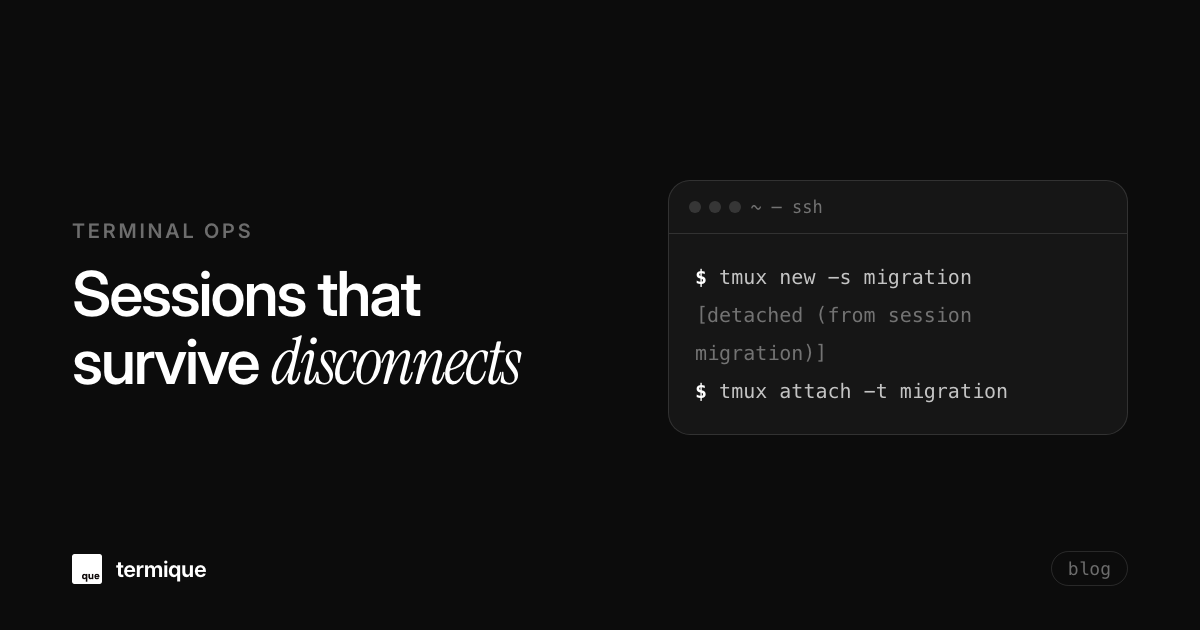
The story is always the same: a long database migration is 40 minutes in, your laptop’s wifi blinks, and the SSH connection dies. When you reconnect, the job is gone, the terminal history gone with it. It never happened again after the first tmux habit. tmux exists precisely for that moment, and a handful of commands is all it takes.
Why tmux survives a disconnect
Inside tmux, the terminal session lives on the remote server, not in the SSH connection. Disconnecting does not kill it. The shell, the running job, and the screen state all keep going server-side. When you reconnect, the session is still there, mid-job, waiting for you to reattach. That is the entire trick, and it is a server-side property, not a client trick.
The same property is why tmux beats the naive habit of ‘just run the job in nohup’. nohup keeps a process alive, but it does not give you the session back. tmux does: the same scrollback, the same panes, the same foreground job, all restored the moment you reattach. For interactive work, which is most of what happens over SSH, that distinction is everything.
The two commands you need first
# start a named session
tmux new -s deploy

# detach: Ctrl-b then d (session keeps running)
# reattach later, from anywhere
ssh server
tmux attach -t deploy
A named session is the habit to build. When you always name sessions, reattaching to the right one is trivial and you never attach to the wrong migration. Unnamed sessions quickly turn into a wall of indistinguishable numbers.
What to do when you have several sessions
One session per task keeps work separated: the migration in one, the tail of the app log in another, the editor in a third.
tmux ls                # list sessions
tmux attach -t logs    # attach by name
tmux kill-session -t deploy  # done with this one
Naming is the difference between a useful habit and a pile of state. A session called migration that you forgot to kill is still findable next week. Three unnamed sessions are three question marks. The one-line rule: if the task is worth connecting for, it is worth naming the session.
Panes: when one job references another
Long-running work usually means watching two things at once, the job and the log it writes. Splitting the screen inside one session avoids tab-hopping every two seconds. The prefix key is Ctrl-b:
- Ctrl-b % : split vertically (side by side).
- Ctrl-b ” : split horizontally (stacked).
- Ctrl-b arrows : move between panes.
- Ctrl-b x : close the active pane.
- Ctrl-b z : zoom a pane to full screen, then back.
With the migration running in one pane and tail -f in the other, a disconnect stops being a disaster. Reattach, and both panes are exactly where you left them.
The workflow that makes it a habit
- Always name sessions:
tmux new -s migration. - Before any long job, create or attach to a named session first.
- Use panes instead of switching windows for job-plus-log pairs.
- After reconnecting to a box, run
tmux attachbefore starting anything new. - Configure a default session so new shells start inside tmux automatically.
The last item is what turns the habit sticky. Add if command -v tmux && [ -z "$TMUX" ]; then tmux new -A -s main; fi to the shell rc on the servers you manage, and every login gives you a persistent session without thinking about it. -A attaches to the existing session or creates it, exactly the behavior you want.
tmux and the rest of the remote workflow
tmux is one layer of a remote workflow that also involves an organized config and predictable commands. The topic fits into the broader remote terminal productivity guide, and the “new laptop in 10 minutes” pattern in remote development setup is where tmux often ends up living permanently.
For anyone running unattended jobs over SSH, especially AI agents or long builds, the session robustness matters even more. Keeping the work alive server-side is what lets AI agents run on remote servers without babysitting the connection.
Copy mode and scrollback: the other 20%
In copy mode, you can also press v to begin text selection and y to yank into your system clipboard if you enable set -s set-clipboard on in your tmux configuration. This allows fast copy-pasting of server logs directly to your local workstation without switching windows or selecting with a mouse.
Beyond panes, the other feature that saves real time is Ctrl-b [, which enters copy mode and lets you scroll back through the session history, even over long-running jobs that spewed thousands of lines. You can search with ? and copy with Ctrl-b space plus Enter. For anyone debugging a build log over SSH, copy mode replaces the entire “re-run it and capture output” dance.
tmux config that fits a sysadmin workflow
A small ~/.tmux.conf removes the two most annoying defaults: the 2-second escape delay and the terrible default bindings for splitting. For a sysadmin jumping between servers, the config that pays for itself is a shorter escape delay, mouse support for scrollback, and larger history:
set -g escape-time 10
set -g history-limit 100000
set -g mouse on
bind | split-window -h
bind - split-window -v
Windows, not just panes: organizing many tasks
When a single screen is too crowded, tmux windows are the next layer. Ctrl-b c creates a window, Ctrl-b n and Ctrl-b p cycle through them, and Ctrl-b , renames the current one. A migration setup often looks like: window 1 is the editor, window 2 runs the migration, window 3 tails the app log. Each window holds its own panes and its own scrollback, and the whole set reattaches after a disconnect as one unit.
Windows are the right tool when tasks are sequential rather than parallel. Running one thing at a time but switching often is a windows job; watching two things simultaneously is a panes job. Mixing both with named windows keeps even a ten-task session navigable.
Sharing a session: the pair-debugging case
tmux has a feature that surprises people in the best way: tmux attach can attach multiple clients to the same session, so two people can watch the same screen live. For pair debugging a server, the flow is one session, two attached terminals, and an obvious host context. A shared session means the phrase “which window are you looking at” never comes up, because you are both looking at the same one.
Synchronized panes: running commands across multiple nodes
One of tmux’s most potent features for cluster administrators is synchronized panes. When you need to tail logs or restart services across four server nodes simultaneously without writing Ansible playbooks, tmux can duplicate your keyboard inputs across all panes:
# 1. Split window into 4 panes and SSH to node-1, node-2, node-3, node-4
# 2. Toggle pane synchronization on:
Ctrl-b :setw synchronize-panes on

# 3. Any command typed now executes on all 4 panes in real time
sudo systemctl restart nginx
tail -n 5 /var/log/nginx/error.log

# 4. Turn off synchronization when finished:
Ctrl-b :setw synchronize-panes off
This turns tmux into a lightweight multi-terminal orchestrator right inside your active SSH connection, complete with instant visual feedback across every connected machine.
Preserving tmux sessions across system reboots
While tmux keeps sessions alive when network drops occur, an unexpected server reboot or kernel patch will still terminate all running sessions. Power users solve this by installing the tmux-resurrect and tmux-continuum plugins through TPM (Tmux Plugin Manager):
# In ~/.tmux.conf:
set -g @plugin 'tmux-plugins/tpm'
set -g @plugin 'tmux-plugins/tmux-resurrect'
set -g @plugin 'tmux-plugins/tmux-continuum'

# Automatically restore last saved session on startup:
set -g @continuum-restore 'on'
This setup saves pane layouts, working directories, and running processes every 15 minutes to disk, automatically restoring your exact multi-window layout after a scheduled server reboot.
Essential keyboard shortcuts reference for remote tmux
Mastering just six key combinations delivers 95% of tmux’s daily productivity benefits when working across remote server fleets:
Ctrl-b c: Create a fresh new window.Ctrl-b n/Ctrl-b p: Switch to next or previous window.Ctrl-b %: Split current pane vertically side-by-side.Ctrl-b ": Split current pane horizontally top-and-bottom.Ctrl-b z: Zoom the active pane to 100% fullscreen (toggle back with the same shortcut).Ctrl-b [: Enter copy/scroll mode; use arrow keys to browse history, pressqto exit.
Memorizing Ctrl-b z is particularly transformative: when reading dense compiler outputs or database query dumps in a small split pane, zooming full-screen and unzooming takes under one second.
The takeaway
- tmux keeps sessions alive server-side, disconnects stop killing your work.
- Named sessions plus deliberate reattach is the entire habit.
- Split panes for job-and-log pairs instead of window hopping.
- Build it into the flow before the long migration, not during it.
tmux is a server-side skill; the terminal window you use is just furniture. termique is a free SSH manager we build, so the box you attach to after a disconnect is one click away instead of a config-file archaeology session. termique.app, if you are curious.